
Settings
Church profile, location, team, roles, campuses, PCO, taxonomy, forms, resources, exports, webhooks, and audit.
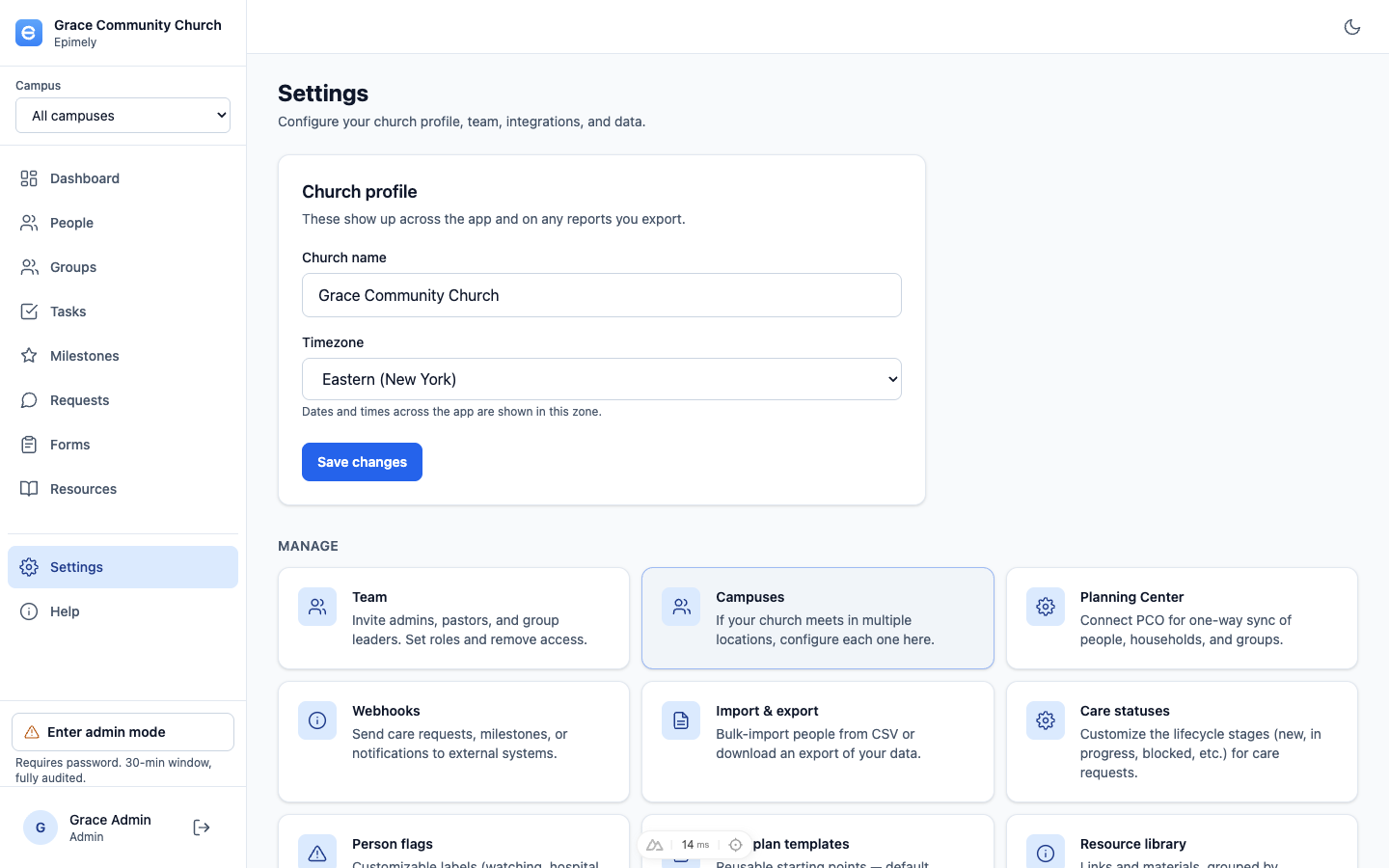
Settings is the admin hub for a church tenant. The left side lists management areas first, while the right side shows the church profile, which can be expanded or collapsed.
Settings includes sensitive administrative actions, so some areas require admin mode and are audited.
How to
Update church profile and location
Set the church name, timezone, street address, city, state, and zip. These values support reports, campus context, and time-based scheduling.
Manage team and roles
Use Users to invite staff and manage lifecycle actions. Use Roles to rename roles, edit permissions, enable or disable roles, restore built-in defaults, and assign users to roles.
Manage campuses
Add campuses when your church has multiple locations. If there is only one campus, Epimely hides the campus list/selector where it would add clutter.
Configure care taxonomy
Customize care statuses and person flags so requests, plans, people filters, and queues use your church's language.
Manage standard forms and templates
Forms and care-plan templates can be created, edited, previewed, disabled, and reused by the care team.
Import, export, and PCO
Import people by CSV or sync PCO one-way. Exports are available only to admins with admin mode active.
Audit and access requests
Approve access requests and review audit logs from Settings. Audit log viewing requires admin mode.
Webhooks and notifications
Configure webhooks and notification-related settings when integrating Epimely with other systems. Push notification delivery depends on the server and Apple Developer push setup.
Tips
- Use admin mode only when you need elevated access; normal admin work should stay scoped.
- Care statuses, person flags, forms, templates, and resources are the main places to adapt Epimely to your church's workflow.
Settings is admin-only. Audit, export, and other privileged actions require admin elevation.